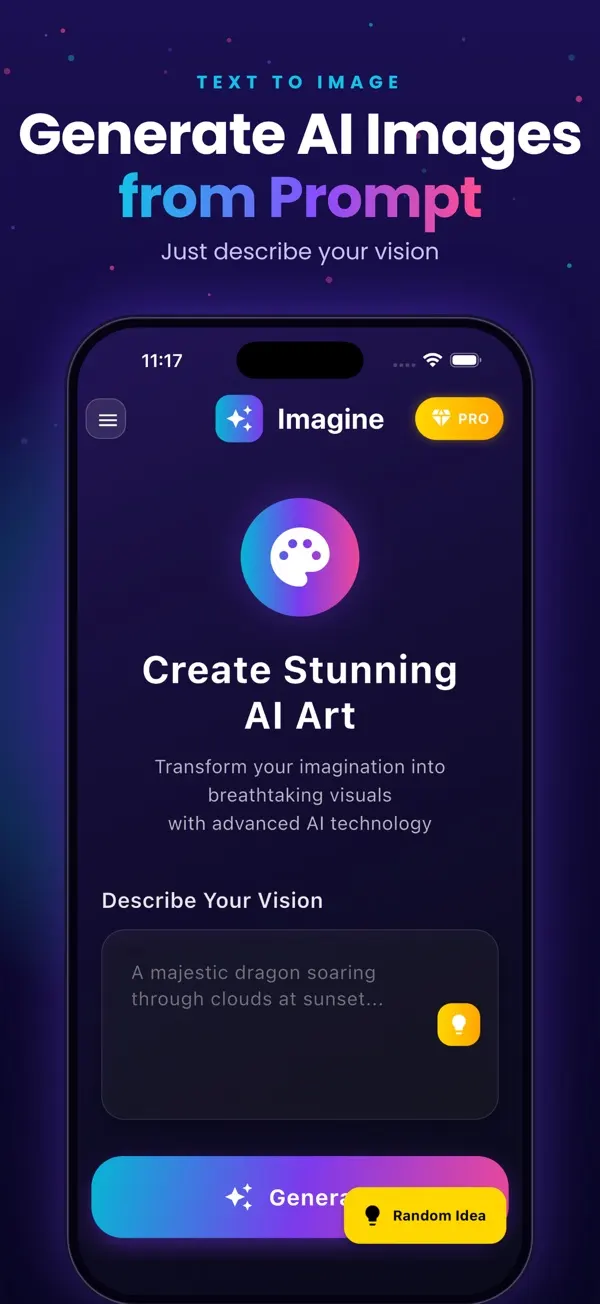
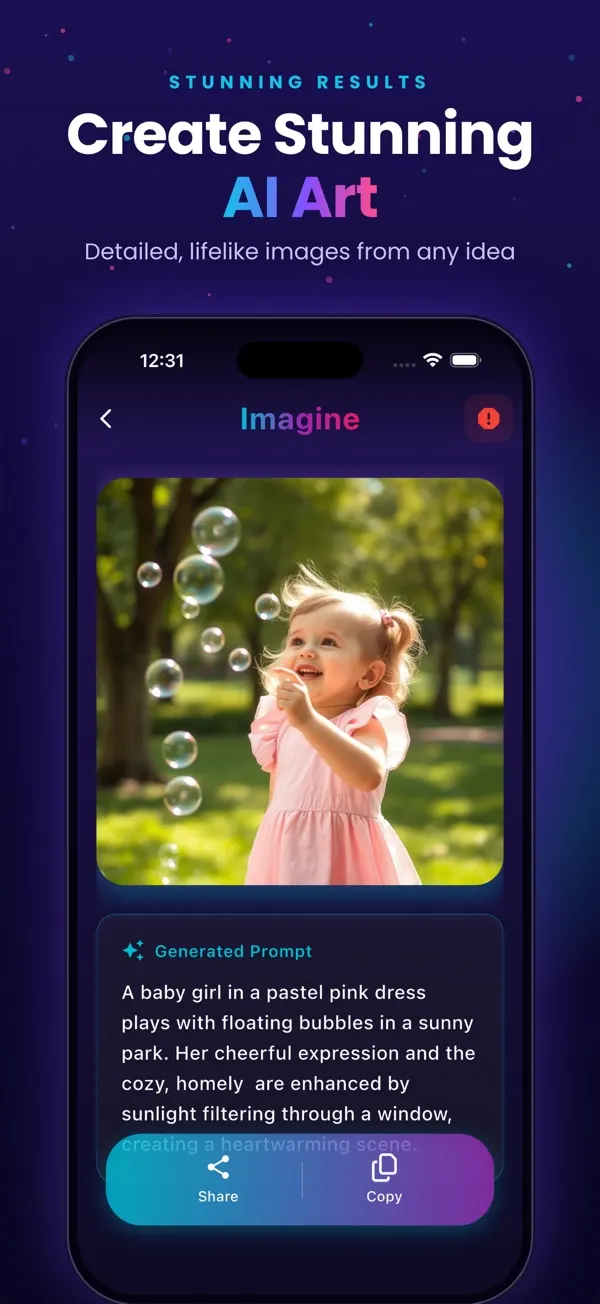
Screens are examples.
Short answer: download the app, sign in with Apple or Google, pick a ready-made prompt or type your own, generate the image, then find it in History or share it. You get 3 free images to start.
How do I make my first image?
- Download the app. Search the App Store for "Generate AI Images" (the product is called Imagine, from AppVeda Software). It is free to download.
- Sign in. Use Sign in with Apple or Google.
- Choose a prompt. Pick a ready-made prompt to start from, or type your own description.
- Generate. Tap generate and wait for the image. It comes out square, 1024x1024 pixels.
- Review it. If it is not what you wanted, change the wording and try again.
- Find it later. Every image is saved in History.
- Share. Send it to apps such as Instagram and WhatsApp.
What is the best way to write a prompt?
Describe one clear subject, then add the place, the light and the style. For example: "a lighthouse on a cliff at sunset, dramatic clouds, oil painting style". Avoid long lists of unrelated ideas. Need examples? Use our prompt ideas or the 30 prompt examples.
What do the free images look like?
The first 3 images are free and have a watermark, and the free tier shows ads. To remove the watermark, use the one-time Remove Watermark purchase; for no ads and more images choose a plan. See pricing.
How do I use an image as a wallpaper or poster?
Save or open the image, then crop it to fit in Photos or another app. For posters with words, add the text in another app because AI can misspell text. More in our guides to the AI wallpaper maker and posters from text.
Tips for better results
- Change only one thing per attempt so you learn what works.
- Name a style: watercolor, 3D render, flat illustration, photo.
- Expect to try a few times. Results vary and may need several tries. The image is a square, so you may need to crop it in Photos or another app.
- Keep prompts free of private information.
What if my image comes out wrong?
This is normal. Image generators interpret words loosely, and the same prompt can give different pictures. Try these fixes in order.
- Make the subject more specific: not "a flower" but "a single red poppy in a green field".
- Remove extra ideas. Three ideas in one prompt often fight each other.
- Add a style word such as watercolor or flat illustration.
- Describe the light and the mood, for example soft morning light, calm.
- Try again. A second or third attempt often looks much better.
How do I keep my images organised?
History holds everything you generate, so you can return to an image later. If an image matters, share it to a place you control or save it to Photos, then crop it. Use clear prompts and you will recognise your own pictures when you scroll back.
Where can I go next?
Once you know the basics, browse the Imagine blog for guides on posters, wallpapers and prompt writing. If you ever want to check whether a picture someone sent is AI-made, FakeSpot gives an estimate.
How do I use Imagine for a real project?
Say you need a cover picture for a bake sale poster. Write the prompt: "a bright flat illustration of cupcakes on a pastel table, lots of empty space at the top". Generate, pick the best result, then place it in a design app and add the date and place as text. This split works well: let the AI make the picture, and let another app handle exact words. The same approach suits invitations, newsletter headers and story backgrounds. Keep your best prompts in a note so you can reuse them.
Frequently asked questions
Do I need an account?
You sign in with Apple or Google to use the app.
Where are my images saved?
Every image is saved in the History inside the app.
Can I upload my own photo?
The app turns text prompts into images. We do not describe photo upload or editing features.
Why does my image have a watermark?
Free images carry a watermark. The one-time Remove Watermark purchase or a subscription removes it.
What if the result looks wrong?
Reword the prompt and try again. AI can get hands and text wrong, and results vary.
Related pages
- Imagine: AI Image Generator for iPhone
- Text to image app for iPhone
- AI prompt ideas to copy and paste
- Free AI image generator for iPhone: what you get
- Imagine pricing and plans
- AI wallpaper maker for iPhone
- Blog: best AI image generator apps for iPhone
- Blog: how text-to-image works
- Blog: 30 AI image prompt examples
- Blog: make a poster from text
- All Imagine articles (blog hub)
About the author
Praful Deshmukh is the founder of AppVeda Software, which builds and publishes Imagine and other iPhone apps. His apps on the App Store
 FakeSpotSpot AI-generated & fake photos
 ImagineTurn text into stunning AI art
 AI Skin ScannerScan your skin from a selfie
 India AQILive air quality for Indian cities
 AI Video DetectorIs that clip real or AI?