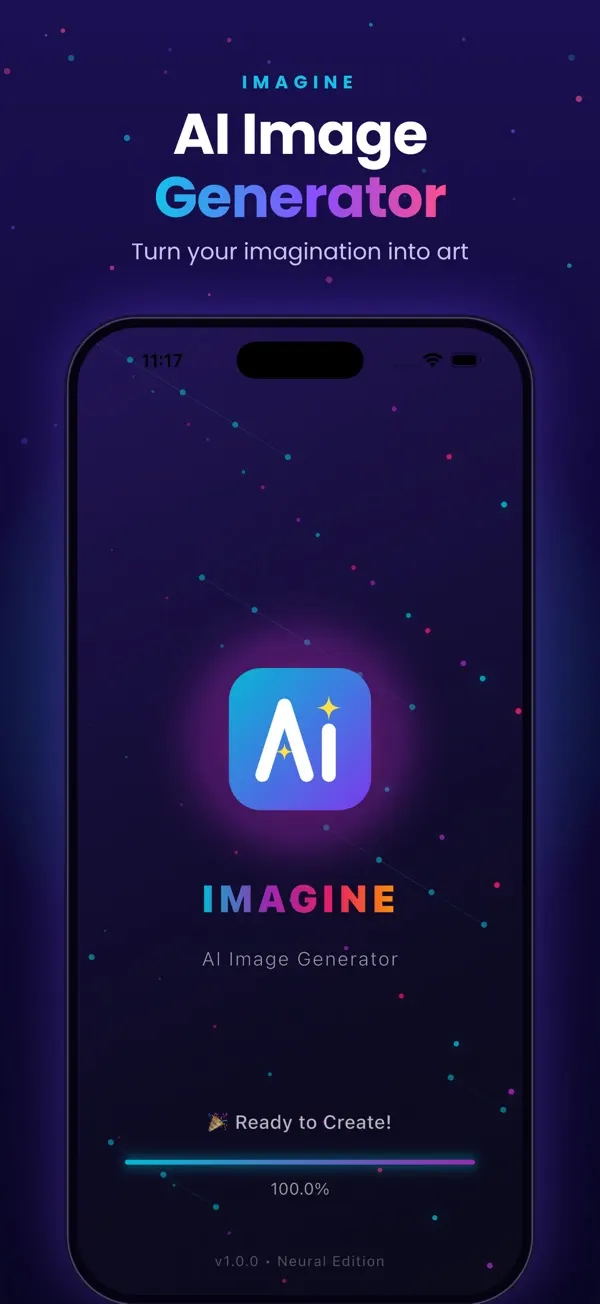
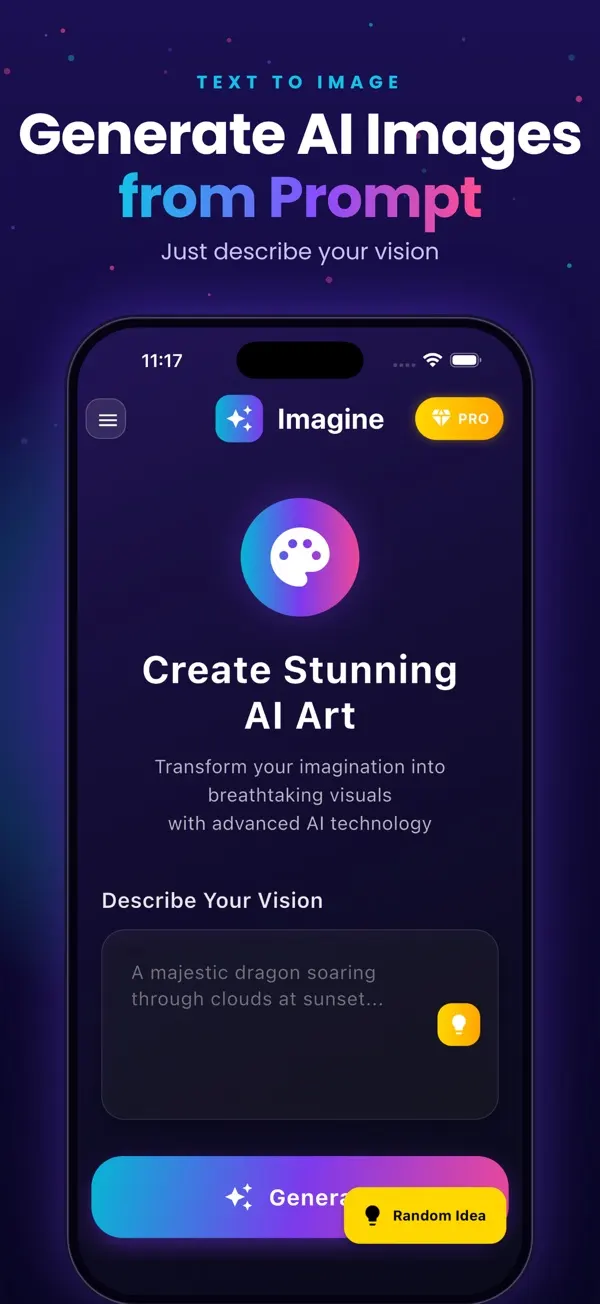
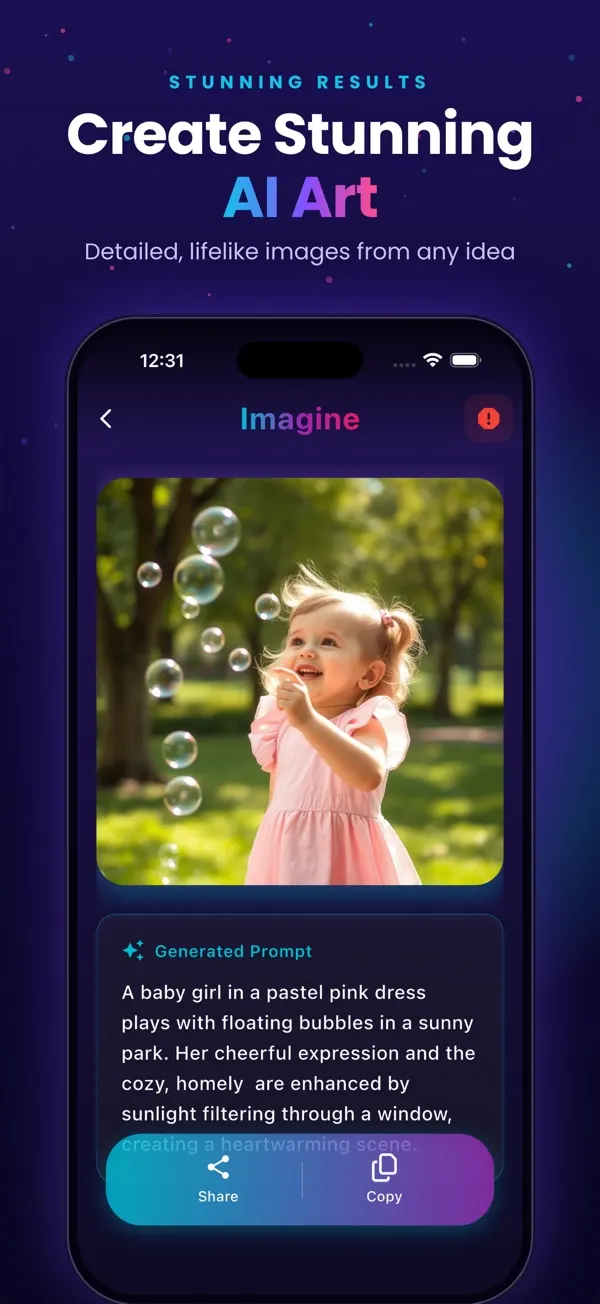
Screens are examples.
Short answer: a text to image app for iPhone lets you describe a picture in words and creates it for you. Imagine (listed on the App Store as "Generate AI Images") by AppVeda Software does this: you pick a ready-made prompt or type your own, tap generate, and get a 1024x1024 pixel square image.
What is a text to image app?
You write a prompt such as "a cozy cabin in a snowy forest at dusk, warm light in the windows", and an AI model builds a new image from that description. Nothing is copied from a photo you took. The wording of the prompt decides almost everything, so a clear, specific sentence beats a vague one. If you want the background, read how text to image works.
What can you do with Imagine on iPhone?
- Start from ready-made prompts, or type your own.
- Generate a square image, 1024x1024 pixels.
- Find every image again in your History.
- Share to apps such as Instagram and WhatsApp.
- Sign in with Apple or Google.
The app is free to download, works on iPhone, iPad and Apple Vision (iOS 13 or later), and the listing says it is available in English, French, German, Danish and Japanese. The age rating is 4+.
How do you write a good prompt?
Name the subject, then the setting, the light and the style. Compare these two:
| Weak | Stronger |
|---|---|
| a dog | a golden retriever puppy sleeping on a sunny windowsill, soft morning light, watercolor style |
| a city | a rainy neon-lit city street at night, reflections on wet pavement, cinematic |
| a logo | a simple flat fox logo concept, orange and cream, minimal, white background |
More ideas are on our AI prompt ideas page, and the step-by-step guide shows the app flow.
What should you expect from the results?
Results vary and may need several tries. The image is a square, so you may need to crop it in Photos or another app. AI can get hands and any text inside the picture wrong, so if you need words on an image, save the picture and add the text in another app. Logos made this way are concept ideas, not finished brand assets.
Is it free?
You get 3 free images to start, with a watermark, and the free tier shows ads. No credit card is needed to start. Paid options remove ads and the watermark; see what the free tier includes and the pricing page.
How does it compare with other apps?
Different apps suit different needs. Our comparison of AI image generator apps for iPhone lists what to look for. If you ever need to check whether a picture someone sent you is AI-made, FakeSpot estimates that, though results are only an estimate.
Common mistakes
- Writing one or two words and expecting a detailed scene.
- Packing a dozen unrelated ideas into one prompt.
- Expecting readable text or perfect hands on the first try.
- Giving up after one result instead of rewording and trying again.
Who is a text to image app good for?
People use these apps for very different jobs, and it helps to know where you fit before you spend any images.
- Casual creators who want a fun picture for a chat, a story or a post.
- Small business owners looking for concept visuals, mood boards or ideas to show a designer.
- Parents and teachers who want a custom picture for a bedtime story or a class activity.
- Hobbyists who enjoy exploring styles from anime to oil painting.
How do I get more consistent results?
Keep a short note of prompts that worked, and reuse their structure: subject, setting, light, style. When one result is close, change a single detail rather than rewriting everything. This way you learn which words steer the picture. A style word such as watercolor, flat illustration or photo often changes the look more than any other detail. History in the app keeps your earlier images, so you can compare versions side by side.
What should I check before sharing an image?
Look at hands, faces and any lettering, because these are the places where AI most often slips. Crop out anything odd. If the image includes real people or brand names, think about whether sharing it is fair and honest. If you post AI images publicly, saying they are AI-made builds trust with your audience.
Frequently asked questions
What is the best text to image app for iPhone?
It depends on what you need. Look at price, watermark and ad rules, how many images you get and how easy sharing is. Our blog compares options so you can decide for yourself.
Can I type my own prompt in Imagine?
Yes. You can start from a ready-made prompt or type your own, then generate.
What size are the images?
Images are square, 1024x1024 pixels. For wallpapers or posters you may need to crop or place them in another app.
Is Imagine free?
It is free to download, with 3 free images to start. Free images have a watermark and the free tier shows ads.
Does it work on iPad?
Yes. The App Store listing shows iPhone, iPad and Apple Vision (iOS 13 or later).
Related pages
- Imagine: AI Image Generator for iPhone
- Free AI image generator for iPhone: what you get
- How to use Imagine, step by step
- AI prompt ideas to copy and paste
- Imagine pricing and plans
- Blog: best AI image generator apps for iPhone
- Blog: how text-to-image works
- Blog: 30 AI image prompt examples
- Blog: make a poster from text
- All Imagine articles (blog hub)
About the author
Praful Deshmukh is the founder of AppVeda Software, which builds and publishes Imagine and other iPhone apps. His apps on the App Store
 FakeSpotSpot AI-generated & fake photos
 ImagineTurn text into stunning AI art
 AI Skin ScannerScan your skin from a selfie
 India AQILive air quality for Indian cities
 AI Video DetectorIs that clip real or AI?