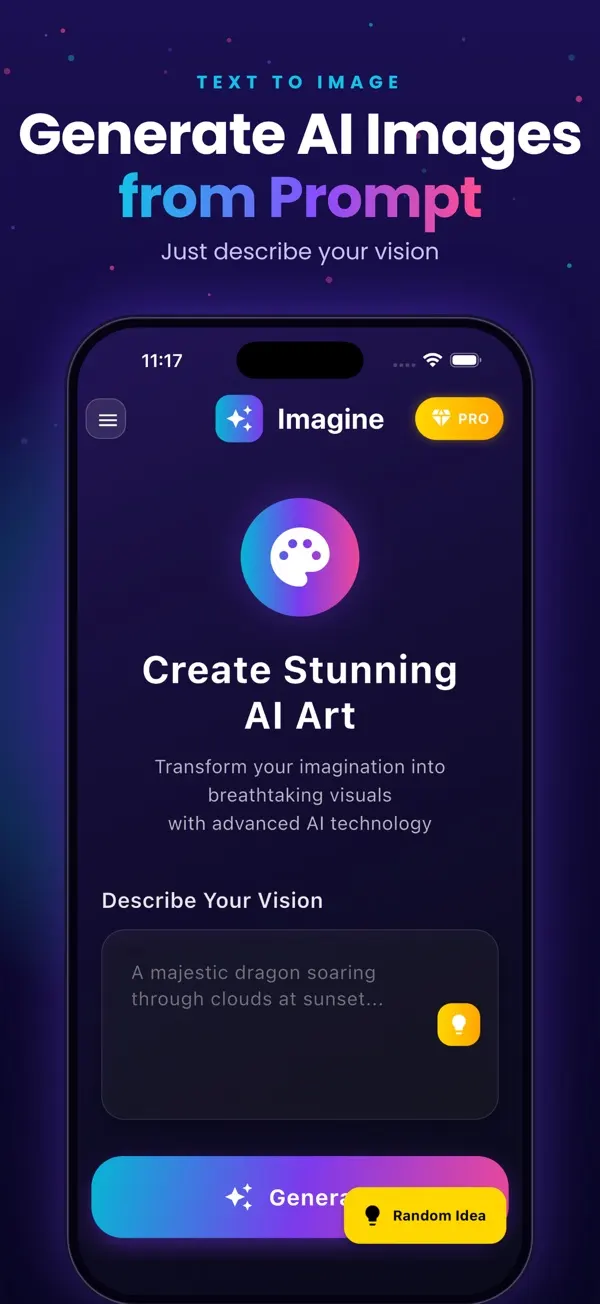
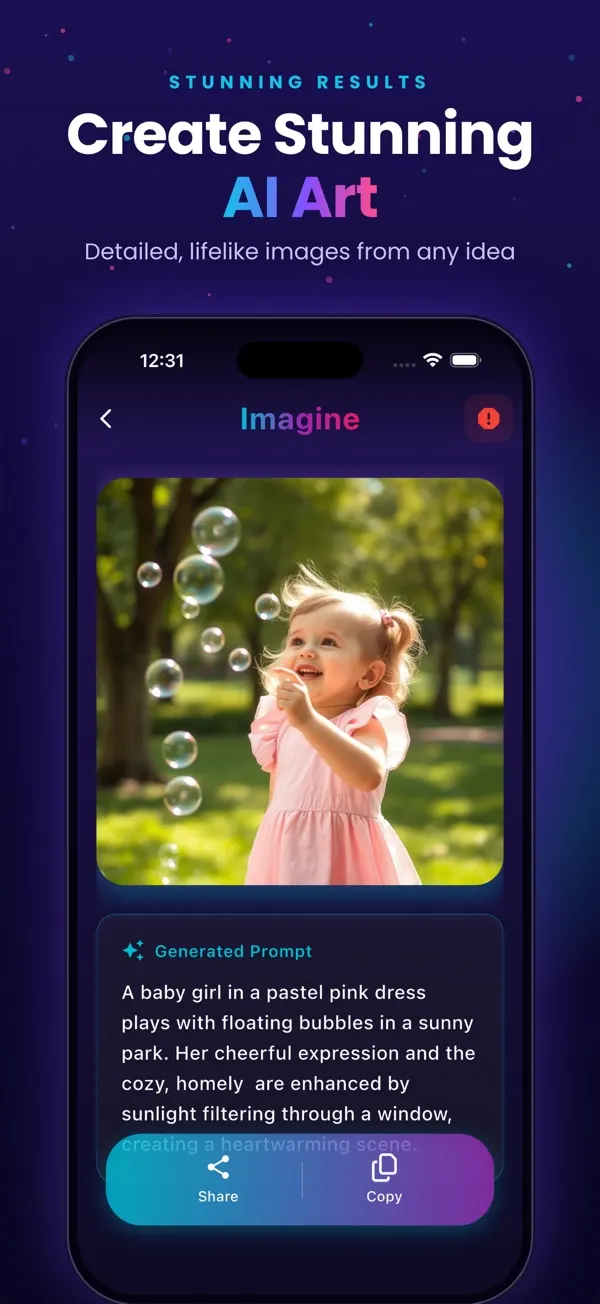
Screens are examples.
Short answer: an AI wallpaper maker creates a background from a text description. In Imagine (listed on the App Store as "Generate AI Images") you type or pick a prompt, generate a square 1024x1024 image, then crop and set it as a wallpaper using Photos on your iPhone.
How do I make an AI wallpaper on iPhone?
- Open Imagine and sign in with Apple or Google.
- Pick a ready-made prompt or type a wallpaper description.
- Generate and review the image. Reword and try again if needed.
- Open the image from History or save it to Photos.
- In Photos, crop it to a tall shape that fits your phone, then set it as wallpaper.
The full flow is in how to use Imagine.
What prompts make good wallpapers?
- a misty mountain valley at sunrise, soft pastel colors, minimal
- deep blue ocean waves seen from above, calm, abstract
- a quiet night sky full of stars over a lone pine tree
- golden desert dunes at dusk, smooth ripples, warm light
- neon purple and teal gradient waves, smooth, modern
- a cozy rainy window with soft city lights, illustration
More are on the AI prompt ideas page.
What makes a wallpaper readable?
Busy pictures hide your icons and clock. Ask for "minimal", "soft", "lots of empty space" or "calm gradient", and keep the main subject away from where apps sit. Darker, muted tones usually keep text easy to read.
What are the limits?
The image is square, so you will crop it for a phone screen, and some of the scene may be cut off. Place the subject in the middle when you write the prompt. Results vary and may need several tries. The image is a square, so you may need to crop it in Photos or another app. The 3 free images have a watermark; remove it with the one-time purchase or a plan, see pricing.
Where can I learn more?
Read how text to image works, the text to image app overview and the blog.
How do I match a wallpaper to my theme?
Choose a color story first, and put it in the prompt. Pastel pink and cream suit a soft look. Navy and gold feel calm and premium. Black and neon green look techy. For a seasonal feel, add autumn leaves, snow or spring blossom. If you want a matching lock screen and home screen, reuse the same style words and only swap the subject, for example "ocean at dusk" and "mountain at dusk" in the same painted style.
What mistakes spoil a wallpaper?
- A bright, busy picture that hides icons and widgets.
- A key subject placed at the edges, which gets cropped away.
- Words inside the image, which may be misspelled.
- Forgetting that a free image has a watermark that may show on the screen.
Fix these by asking for calm, simple scenes, putting the subject in the center and saving the final crop in Photos before you set it. With a few tries you can build a small collection of backgrounds that nobody else has.
What about different phone sizes?
Every iPhone has a different screen shape, but all are tall, while the generated image is square. When you crop in Photos, keep the key part in the middle third so it survives any size. If a wallpaper looks soft after cropping, ask for simpler shapes and smoother gradients in the next prompt; they hide softness better than fine detail does. Finally, test the result on both your lock screen and home screen before you commit, because clock and icons sit differently on each. If the clock covers the subject, move it lower in your next prompt, for example by asking for a wide empty sky at the top of the scene.
Frequently asked questions
Can I make a wallpaper that fits my iPhone exactly?
The app creates a square image, so you crop it in Photos or another app to fit your screen.
Is the AI wallpaper maker free?
You get 3 free images to start, with a watermark and ads on the free tier.
How do I remove the watermark from a wallpaper?
Use the one-time Remove Watermark purchase or a subscription.
Can I make a lock screen and home screen set?
Yes, generate two images with a matching style and color words, then set each in Photos.
Can I sell the wallpapers I make?
Check the terms of the app, Apple and the marketplace yourself; we cannot give legal advice.
Related pages
- Imagine: AI Image Generator for iPhone
- AI prompt ideas to copy and paste
- How to use Imagine, step by step
- Text to image app for iPhone
- Free AI image generator for iPhone: what you get
- Blog: best AI image generator apps for iPhone
- Blog: how text-to-image works
- Blog: 30 AI image prompt examples
- Blog: make a poster from text
- All Imagine articles (blog hub)
About the author
Praful Deshmukh is the founder of AppVeda Software, which builds and publishes Imagine and other iPhone apps. His apps on the App Store
 FakeSpotSpot AI-generated & fake photos
 ImagineTurn text into stunning AI art
 AI Skin ScannerScan your skin from a selfie
 India AQILive air quality for Indian cities
 AI Video DetectorIs that clip real or AI?