Quick answer: Use AI to create the artwork with empty space, then add the real text in a normal editing app, because AI often garbles lettering. Describe the mood and layout in the prompt, check the image size, and proof the final file before printing.
3 free AI images. After that, a subscription: Weekly $4.99, Monthly $9.99 or Yearly $39.99 (local price shown in the App Store).
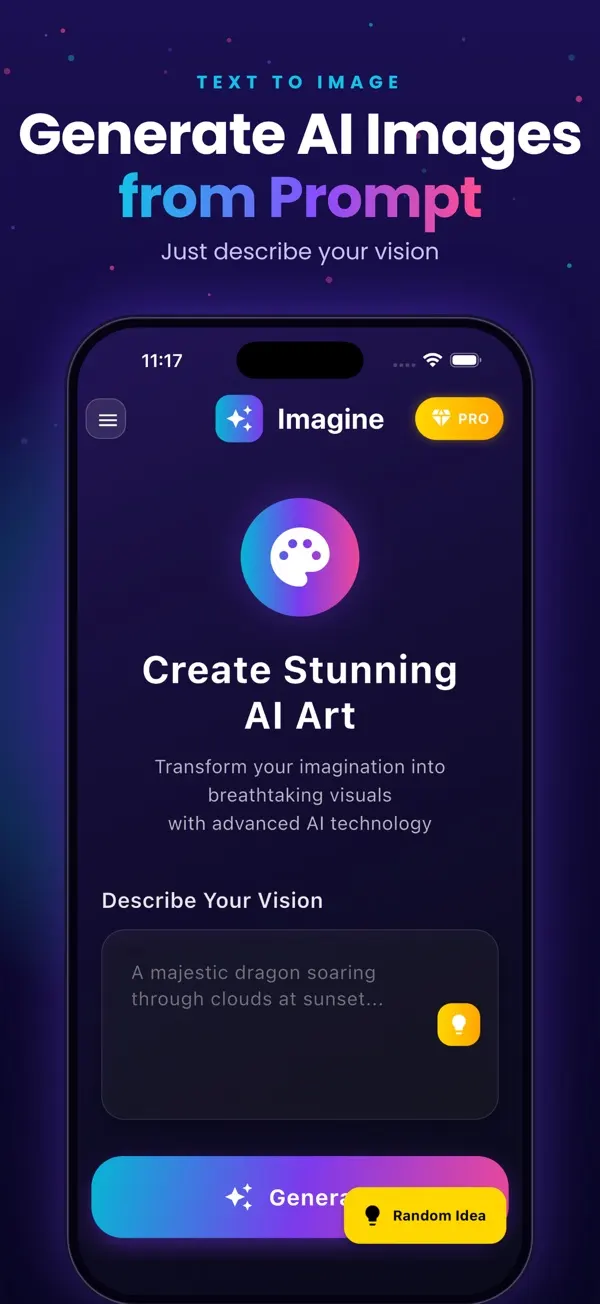
Screens are examples.
AI is good at moods and backgrounds, and not good at spelling. That shapes the whole workflow: let AI make the picture, and let a normal editing app handle the words. This guide walks through it for an event or a sale. If you are new to prompts, read how text to image works first or borrow from our 30 prompt examples.
What should I put in the prompt for a poster?
- Purpose and mood: "summer night market", "autumn clearance sale", "school charity run".
- Main visual: one subject or pattern, not five.
- Style: retro print, flat illustration, bold gradient, photo.
- Colours: two or three, matched to your brand or event.
- Layout: "vertical", "empty space at the top", "blank center".
- No text: add "no text" so the AI leaves lettering out.
Example for an event: vertical poster background for a neighborhood night market, string lights and paper lanterns, deep blue and orange, flat illustration, empty space at the top and bottom, no text
Example for a sale: vertical sale poster background, cream paper texture, simple red and gold shapes around the edges, blank center, no text
How do I make a poster step by step?
- Generate 3 to 4 backgrounds with the prompt above and choose the one with the cleanest empty area.
- Save the highest quality export your app allows.
- Open a normal editing app (any design or photo editor you like) and place the image as the background.
- Add your text: headline, date, place, price. Use one or two fonts and strong contrast with the background.
- Add a simple logo or QR code if you have one.
- Export as the format your printer or social platform needs.
Why not let AI write the words?
AI image models draw letters as shapes, not as spelling, so words often come out distorted or misspelled. A date or price that is wrong on a poster is costly. Adding the real text yourself lets you check every character and change it later without regenerating.
What should I check before printing?
- Size and resolution: compare the image pixels with the print size your printer recommends. Enlarged small images look blurry.
- Safe margins: keep key text away from the edges so it does not get trimmed.
- Spelling, dates, prices, phone numbers: read every line aloud, ideally with a second person.
- Contrast: can you read the headline from two metres away?
- Rights: no real people's faces or other brands' logos without permission, and check your app's terms for commercial use.
- Proof: print one test copy before ordering many.
Common mistakes
- Busy backgrounds that make text hard to read.
- Too many fonts and colours.
- Skipping the proof print.
What next?
Try a background in Imagine, which gives 3 free AI images, then finish the poster in your editing app. More guides are on the Imagine blog and the AppVeda apps page.
What is a simple example from start to finish?
Say a small bakery wants a weekend sale poster. The owner generates three vertical backgrounds with the sale prompt above and picks the one with the calmest centre. In an editing app the owner sets the background, adds the headline "Weekend Bread Sale" in a large bold font, then the dates, times and address in a smaller font, and a short line about the offer. The owner proofs every number, prints one test copy at the final size, and only then orders the rest.
How can I make the poster easier to read?
- Use a clear hierarchy. One main headline, one supporting line, then details.
- Keep the text area calm. If the busy part of the image sits behind the words, add a semi-transparent shape behind the text or move the text.
- Limit to two fonts. One for the headline, one for details.
- Match the format. Posters are usually vertical, while social posts often work better square or vertical. Generate a background in the shape you will use.
Can I reuse the same background for different sizes?
Sometimes. A vertical background with generous empty space can be cropped for a smaller flyer, but a very different shape, such as a wide banner, is better generated again with the right layout in the prompt. Save the wording of a prompt that worked so you can produce matching versions for flyers, social posts and shop windows.
One last tip: view the finished file on your phone and on paper. Colours can print darker than they look on screen, so a test print is the quickest way to catch surprises before you commit.
Imagine: AI Image Generator
Free to try on the App StoreType an idea and Imagine turns it into high-quality AI art in seconds: posters, social posts, product ideas and more. Free on iPhone.
Download on theApp Store App details →More from AppVeda Software
- Made an AI image and want to know how it looks to a detector? Try FakeSpot, our AI image detector (3 free checks).
- AppVeda Software also builds AI-powered mobile apps for businesses. See all our apps.
Frequently asked questions
Can AI write the text on my poster?
It can try, but AI images often garble or misspell letters. The reliable approach is to generate the artwork without text and add your words in a regular design or photo editing app.
How do I leave room for text?
Say so in the prompt: "empty sky at the top" or "blank center area". Choose a simple background where text will stay readable.
What size should I make a poster?
Check the export size your tool provides and the size your printer needs. A small image enlarged to poster size looks soft, so test with a print proof or use a smaller print format.
Can I use the poster commercially?
Check the terms of the app you use and any local rules. Do not use real people's likenesses or others' logos without permission.
How many images should I generate?
Create several backgrounds, pick the one with the clearest empty area, and then refine. Imagine offers 3 free images to start with.
Related reading
About the author
Praful Deshmukh is the founder of AppVeda Software. He builds and publishes iPhone apps, including FakeSpot and Imagine. More about Praful · His apps on the App Store
 FakeSpotSpot AI-generated & fake photos
 AI Skin ScannerScan your skin from a selfie
 India AQILive air quality for Indian cities
 AI Video DetectorIs that clip real or AI?