Quick answer: Text-to-image AI turns your words into a picture by using a model trained on many image and caption pairs. It starts from random noise and refines it until it matches your text. For better results, name the subject, style, light and composition, and change one thing at a time.

3 free AI images. After that, a subscription with credits: $9.99/month or $89.99/year (local price shown in the App Store).
You type "a fox in a snowy forest" and a few seconds later there is a picture. It feels like magic, but understanding the basics will make your results much better. This guide is for non-technical readers. (If you are still choosing a tool, start with our comparison of how to compare AI image generator apps.)
What happens when I type a prompt?
In simple terms, three things happen.
- Your words become numbers. The system converts the prompt into a numeric form that captures meaning, so "fox" and "snowy forest" are linked to what such things usually look like.
- It starts from noise. Many modern generators use a technique called diffusion. They begin with an image of pure random noise.
- It cleans the noise step by step. Over many small steps, the model removes noise in a direction that matches your text, until a picture appears.
The model learned what things look like from huge numbers of images paired with captions. It does not search the internet for a photo or paste existing pictures together; it produces a new image from what it learned.
Why do results vary, even with the same prompt?
Because every run starts from different random noise. Also, a short prompt leaves most decisions to the AI. "A dog" could be any breed, any place, any style. The more you specify, the narrower the possibilities, though some variation will always remain. Treat the first image as a draft, not a final answer.
What should a good prompt include?
- Subject: who or what, and what they are doing.
- Setting: where and when.
- Style: photograph, watercolor painting, 3D render, flat illustration.
- Light: golden hour, soft window light, neon at night.
- Composition: close-up, wide shot, from above, centered with empty space.
- Negatives (only if supported): some tools have a field for things to avoid. If yours does not, phrase it positively.
Four worked examples, from vague to specific
Example 1: add the subject and place
Weak: a cat
Better: a grey tabby cat sleeping on a windowsill
Example 2: add style
a grey tabby cat sleeping on a windowsill, watercolor painting, soft edges
Example 3: add light
a grey tabby cat sleeping on a windowsill, watercolor painting, warm afternoon sunlight, gentle shadows
Example 4: add composition
a grey tabby cat sleeping on a windowsill, watercolor painting, warm afternoon sunlight, close-up from the side, blurred green garden behind
Notice that each step adds one idea. If the fourth result goes wrong, you know which change caused it.
How do I iterate without wasting images?
- Start with the simplest prompt that names the subject.
- Generate and look at what is missing: mood, style, framing?
- Add one new detail and generate again.
- Keep a note of wording that worked and reuse it.
This matters especially when your free or credit allowance is limited. Imagine, for example, gives 3 free images before a subscription with credits, so planning each prompt helps.
What are the limits?
- Hands, small objects and exact counts ("exactly five candles") are often wrong.
- Text inside the image is unreliable. Add words later in a normal design or photo app.
- No prompt guarantees a specific result. Wording only shifts the odds.
What next?
Try the four-step ladder above with your own subject in Imagine, then browse the Imagine blog and the other AppVeda apps.
What are common beginner mistakes?
- Changing everything at once. If you rewrite the whole prompt, you cannot tell which change helped.
- Vague style words. "Nice" or "beautiful" mean little. "Watercolor, soft edges" is concrete.
- Conflicting instructions. "Photograph" and "cartoon" in one line pull in different directions.
- Judging by one image. Generate two or three and compare before rewriting.
Is there a simple prompt template?
Yes. Fill in the blanks: [subject] [doing what], [setting], [style], [light], [composition]. For example: a street musician playing violin, old town square at dusk, oil painting, warm lamplight, wide shot. Drop any slot you do not care about, and let the AI decide it.
Keep in mind that every tool has its own quirks. A phrase that works well in one app may behave differently in another, so build your own small library of wording that gives you good results.
Imagine: AI Image Generator
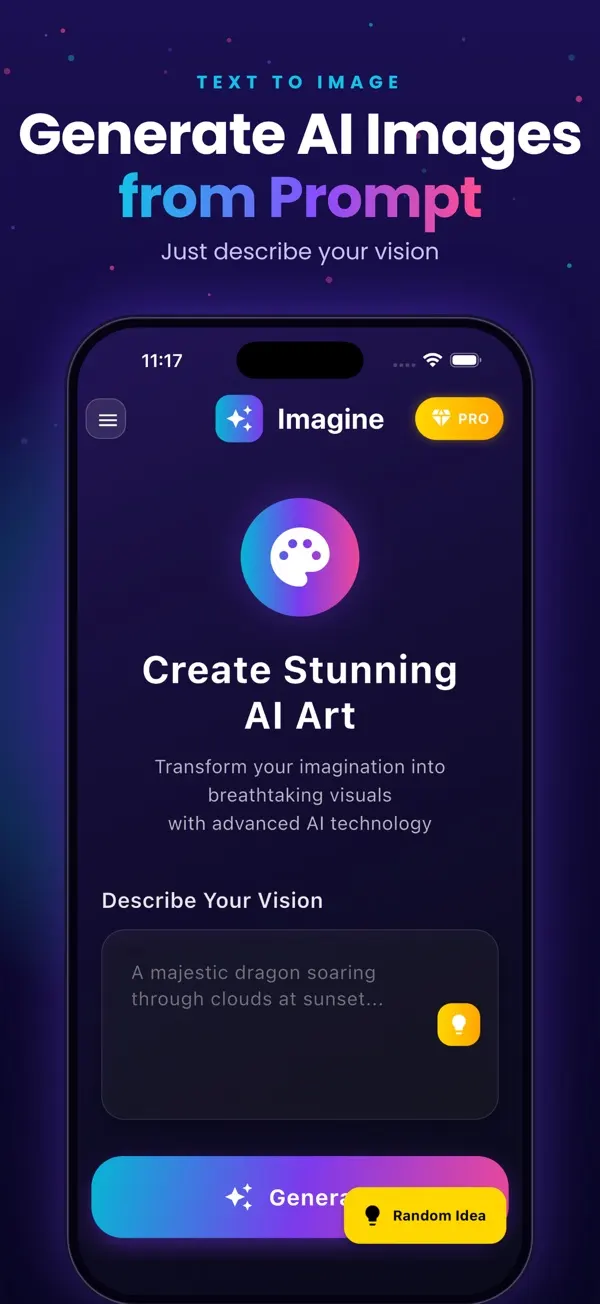
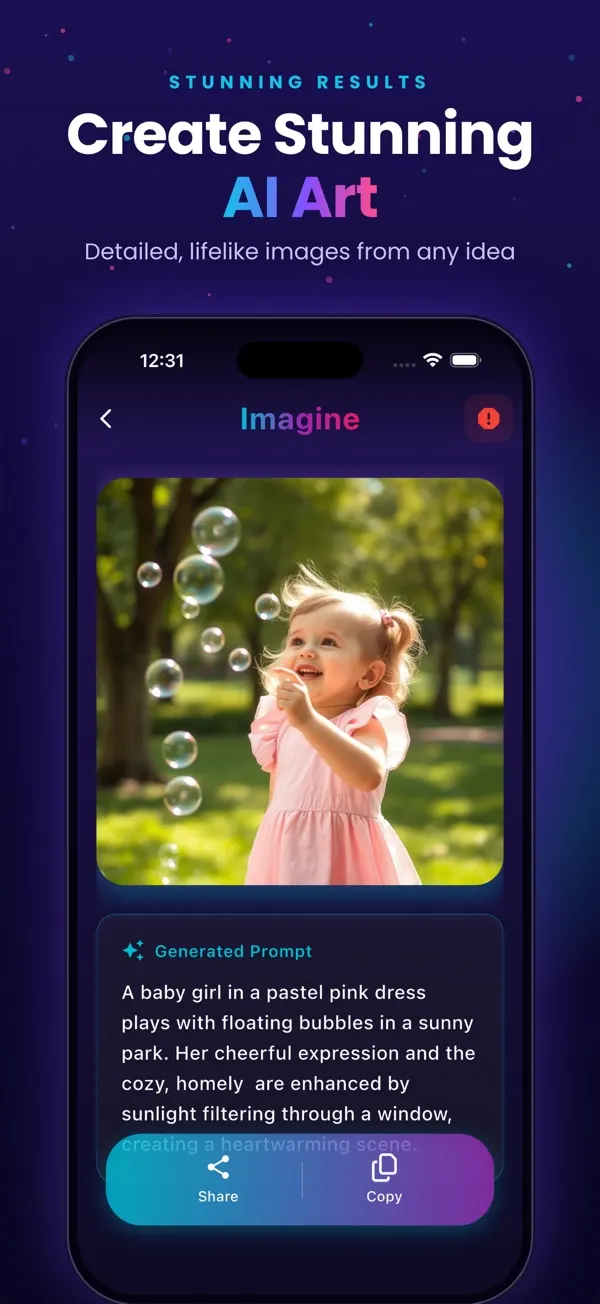
Free to try on the App StoreType an idea and Imagine turns it into high-quality AI art in seconds: posters, social posts, product ideas and more. Free on iPhone.
Download on theApp Store App details →
More from AppVeda Software
- Made an AI image and want to know how it looks to a detector? Try FakeSpot, our AI image detector (3 free checks).
- AppVeda Software also builds AI-powered mobile apps for businesses. See all our apps.
Frequently asked questions
How does text-to-image AI work?
A model is trained on very large collections of images paired with text descriptions. When you type a prompt, it turns the words into numbers that capture meaning, then gradually refines random noise into an image that fits those numbers. Many current systems use a method called diffusion.
Why does the same prompt give different pictures?
The process starts from random noise, so each run begins differently. A longer, more specific prompt narrows the range, but you will still see variation. That is normal, so generate a few and pick the best.
How long should a prompt be?
One or two clear sentences is a good start: subject, setting, style and light. Very long prompts can contradict themselves, so add detail gradually.
Do I need negative prompts?
Only if your tool supports them. Where there is no field for it, describe what you do want ("clean empty background") instead of what you do not.
Can the AI draw text in the picture?
Often badly. Letters can come out garbled, so plan to add real text afterwards in an ordinary editing app.
About the author
Praful Deshmukh is the founder of AppVeda Software. He builds and publishes iPhone apps, including FakeSpot and Imagine. More about Praful · His apps on the App Store
 FakeSpotSpot AI-generated & fake photos
 AI Skin ScannerScan your skin from a selfie
 India AQILive air quality for Indian cities
 AI Video DetectorIs that clip real or AI?