Quick answer: An AI Christmas card maker turns a short description into card artwork. In Imagine you type a festive scene, get a square image, then add your greeting in a design or messaging app, because AI images often misspell text. Allow time for several tries before you print or send.

3 free images (with a watermark). Premium plans: Weekly $4.99, Monthly $9.99, Yearly $39.99, or a one-time $1.99 to remove the watermark (local price shown in the App Store).
Screens are examples.
If you want a Christmas card nobody else has, an AI Christmas card maker is a quick way to get the artwork: you describe a scene and the app paints it. This guide shows how to do it on an iPhone with Imagine (listed on the App Store as "Generate AI Images"), gives you ten prompts to copy, and explains the one step people forget: putting the actual greeting on the card.
How does an AI Christmas card maker work?
You write a prompt, a sentence describing what you want to see. The app turns it into a picture. If you are curious about the mechanics, read how text-to-image works. The key point for cards is that the app creates the picture. It is not a card layout tool, so the words "Merry Christmas" are best added afterwards.
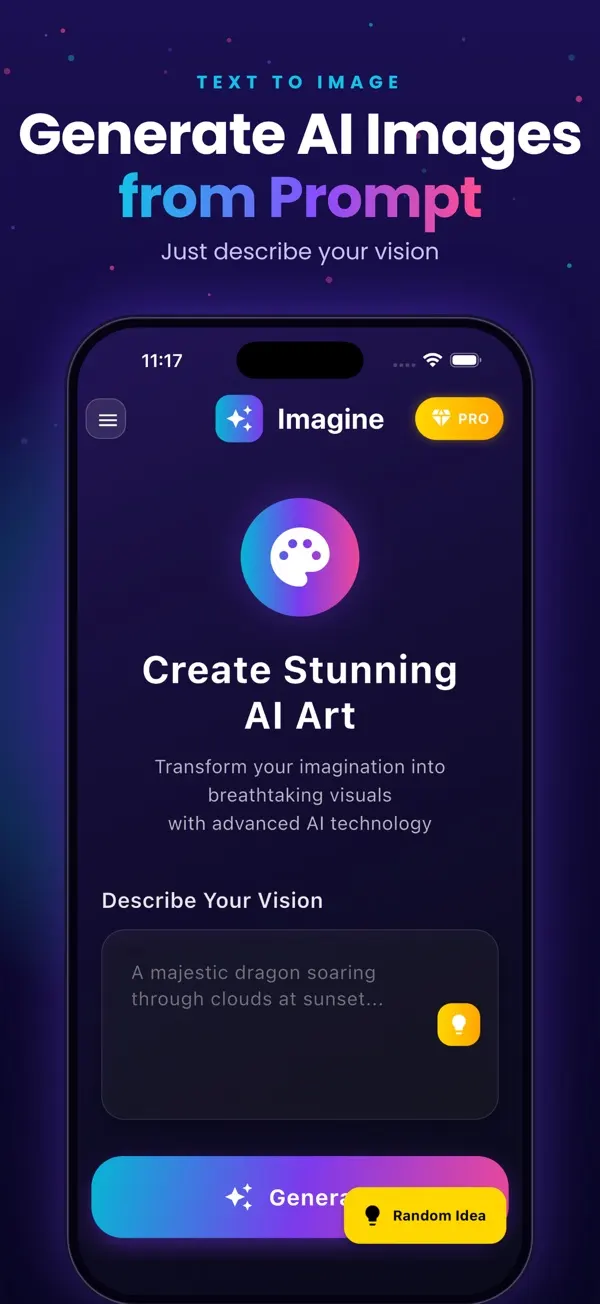
- Open the app and choose a ready-made prompt, or type your own in the prompt box.
- Generate. You get a square 1024 x 1024 pixel image.
- Not quite right? Change one detail in the prompt and generate again.
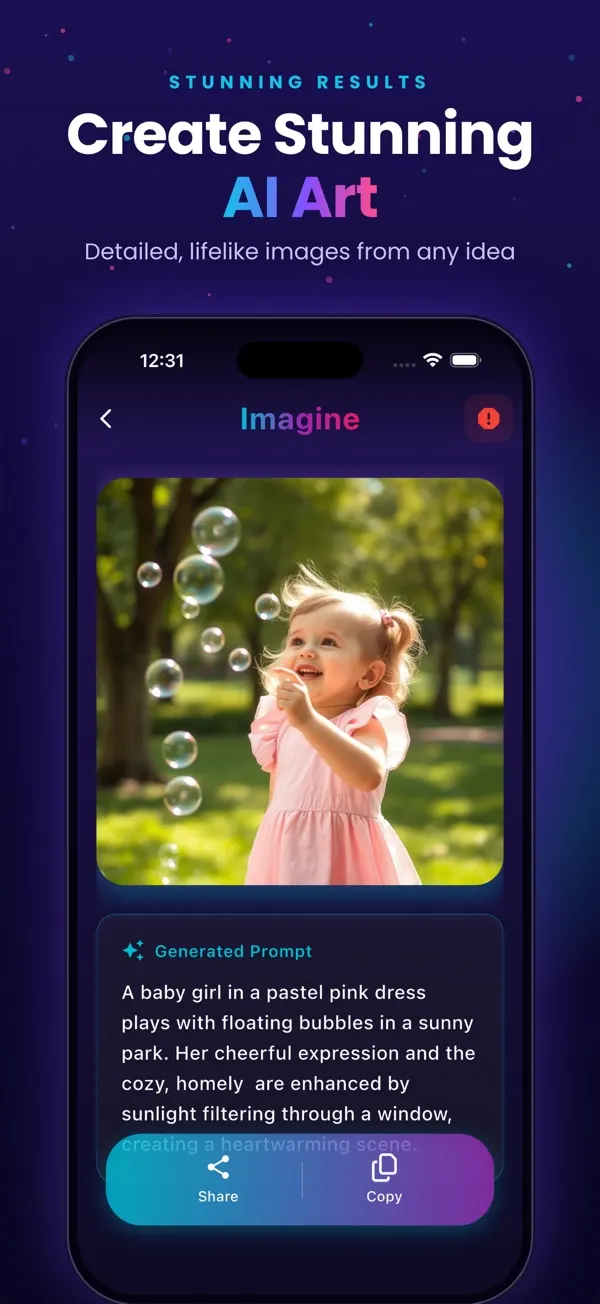
- Find every image in History, then share it or save it to use in another app.
You can start with 3 free images, no credit card needed. Free images carry a watermark and the free tier shows ads. Paid plans (US App Store prices; prices vary by country) start with a one-time Remove Watermark purchase at $1.99, or a subscription: Weekly $4.99 (15 images per week), Monthly $9.99 (49 images per month) or Yearly $39.99 (100 images per month, with a 3-day free trial for eligible new subscribers). See the plans and pricing page for details.
What are good prompts for an AI Christmas card?
Name the subject, the style and the light, and keep empty space in the picture where you will add text later. Copy any of these:
a cosy snow-covered cabin with warm yellow windows at dusk, falling snow, watercolor style, soft pink and blue sky, empty sky area at the top
Empty sky leaves room for your greeting.a red cardinal on a pine branch with a few red berries, winter morning light, delicate watercolor, white background
Plain backgrounds are easy to crop and to place text on.a golden retriever wearing a knitted red scarf sitting beside a Christmas tree, soft warm lamp light, children's book illustration
Pets are a favourite for family cards.a minimalist Christmas tree made of simple green triangles on a cream background, flat vector style, lots of empty space
Flat, simple styles survive printing well.a vintage 1950s style Christmas card illustration, a snowy village street with glowing shop windows, painted gouache look
A named era gives a clear look.a cheerful snowman family in a snowy field under a starry night sky, whimsical cartoon style, bright colors
Good for cards going to children.an elegant wreath of holly and pine cones with gold ribbon, centered, dark green background, space in the middle for text
Asking for a space in the middle gives a ready-made text area.a paper-cut style winter scene with layered pine trees and a large moon, white and deep blue
Layered paper looks fresh and holds up at small sizes.a small reindeer standing in a snowy forest with glowing lanterns, magical atmosphere, soft focus background
Light sources add mood.a family of penguins in tiny Santa hats walking across ice, playful illustration, pastel colors
Light-hearted and easy to read.
Want more starting points? Try 30 AI image prompts with examples or browse more prompt ideas.
How do I add my message to the card?
Image generators can spell short words correctly one time and wrongly the next, so avoid asking for the greeting inside the image. Instead:
- Generate the picture with empty space and save or share it from History.
- Open it in Photos, Canva, Pages or any design app you already use.
- Add your text there, where you control the font, size and spelling.
- Export and send it by message or email, or print it.
The output is a square image. A standard folded card is usually taller than it is wide, so you may need to crop or place the square inside a larger page in your design app.
What should I expect, and what are the limits?
- Results vary. The same prompt can give different pictures. Plan for several tries.
- Hands, faces and text can look odd. If a person is not essential, draw an animal or a scene instead.
- It is a square image. Crop or place it for printing.
- Print quality is your call. Check a printed proof before ordering many copies.
What are common mistakes?
- Asking for a long greeting inside the image. Add text afterwards instead.
- Writing a very long prompt with too many ideas. Start with one subject.
- Leaving no empty space for the message.
- Leaving it to the last week. Allow time for retries and printing.
Where can I go from here?
Once you have a card you like, the same image can become a phone background (see our AI wallpaper maker page) or a gift tag. Browse the Imagine guides for more. If you also need a flyer for a holiday event, see how to make a poster from text. More apps from AppVeda Software are on the AppVeda apps page, and for a checklist of how to write good prompts read how to use Imagine step by step.
Imagine: AI Image Generator
Free to try on the App StoreType an idea and Imagine turns it into high-quality AI art in seconds: posters, social posts, product ideas and more. Free on iPhone.
Download on theApp Store App details →More from AppVeda Software
- Made an AI image and want to know how it looks to a detector? Try FakeSpot, our AI image detector (3 free checks).
- AppVeda Software also builds AI-powered mobile apps for businesses. See all our apps.
Frequently asked questions
Can AI make a Christmas card for free?
You can start with 3 free images in Imagine, with a watermark and ads on the free tier. For more images or no watermark you need a paid option; see the pricing section above.
Can I put my family photo on an AI Christmas card?
This guide covers text-to-image only: you describe a scene and the app creates the picture. Combine it with your own photos in a design app if you want both on one card.
Why is the text in my AI card spelled wrong?
Image generators draw letters as shapes and often get words wrong. Add the greeting afterwards in Photos, Canva or Pages.
What size is the AI image?
Imagine creates square 1024 x 1024 pixel images, so crop or place it on a card template for a folded card.
Can I print the AI Christmas card?
Yes, you can save the image and print it, but check a test print for sharpness. Terms for commercial use are not covered here, so read the app and App Store terms yourself.
Related reading
About the author
Praful Deshmukh is the founder of AppVeda Software. He builds and publishes iPhone apps, including FakeSpot and Imagine. More about Praful · His apps on the App Store
 FakeSpotSpot AI-generated & fake photos
 AI Skin ScannerScan your skin from a selfie
 India AQILive air quality for Indian cities
 AI Video DetectorIs that clip real or AI?